How to Read a Script While Recording Video on iPhone
To read a script while recording video on one iPhone, use a teleprompter app with its own camera recording view. Open your script in that app, adjust the text and scrolling pace, then record there. A page that only scrolls text is not enough: you need to confirm that the app records video too.
If you want to use Apple’s Camera app, put your notes beside the lens on a second screen or cue card. That also works when you only need a few reminders rather than a word-for-word script.
This guide takes you from a script to a saved take. Use the free script timing calculator below to check whether your words fit before you film. If recording already works but your delivery feels stiff, go straight to our guide to reading a teleprompter naturally.
Choose a setup before choosing settings
| What you have | Practical setup | What to check first |
|---|---|---|
| One iPhone and a complete script | A teleprompter app with built-in video recording | Does it record the camera and microphone, and let you save the result on your plan? |
| An iPhone plus a tablet or laptop | Record on the iPhone; display notes on the other screen beside its lens | Can you read without turning your head or moving your eyes far from the camera? |
| A short message you mostly know | Put two or three cue words beside the lens and record in Camera | Do the cues remind you of the point without making you read full paragraphs? |
Apple’s Camera recording guide documents video controls, including pausing and resuming, but does not describe an on-screen script reader. A teleprompter app provides that separate reading layer. For example, Teleprompter Pro’s recording guide documents front-camera recording while reading a script. App controls and plan limits differ; our iPhone teleprompter comparison helps you choose a workflow.
Set up one iPhone to read and record
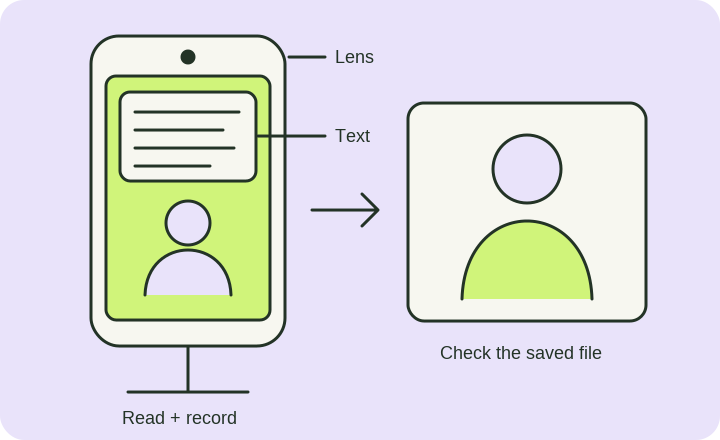
Setup sketch, not an app screenshot. Keep the reading area close to the lens where your app allows it. Check the exported video rather than assuming everything visible on your screen is part of the recording.
1. Prepare the words you will actually say
Use the final spoken script, not a document full of headings, research notes and instructions to yourself. Break long paragraphs into short thoughts. Write numbers as you intend to say them: “one hundred and twenty” takes longer than the written token “120” suggests to a word counter.
Keep filming directions separate while estimating the spoken length. For example, a direction to hold up a product adds time without adding spoken words. Put that time in the calculator’s pause allowance.
Here is an original practice script you can use with any app that accepts your own text:
Before you buy storage for a small desk, measure the space you actually have.
Check the width beside your laptop, then check the depth with the keyboard in place.
Leave room for the things you reach for every day.
Write those measurements down before you compare organisers. That gives you a useful limit to shop with.
If you demonstrate the measurements, leave enough time to show them. The script is a practice example, not a promise of a particular running time.
2. Open the app’s recording view
Look for a camera or record-video control inside the teleprompter app. Check that you can see the camera preview and your script together. Use the front camera if you need to read the iPhone screen while facing it.
Allow camera and microphone access when the recording app requests them. If you previously declined, Apple documents the controls under Settings → Privacy & Security → Camera and Microphone. See Apple’s permission instructions.
Do not start an iPhone screen recording to capture this view. That records the interface you can see; the teleprompter app’s own video recorder is the relevant control for filming yourself.
3. Position the phone, then adjust the text
Support the phone at a comfortable eye level. Frame your face and any object you need to show before starting. If you move the phone afterwards, recheck the framing.
Locate the actual front-camera lens. Set text large enough to read at your filming distance without leaning forward. Where your app supports repositioning the script, keep the current reading area near that lens. On-screen words still sit beside the camera, so check the result rather than expecting perfectly centred eye contact.
4. Match the scroll to a spoken rehearsal
Read the opening aloud with the pauses you intend to use. Slow the scrolling if a line leaves the reading area before you finish it. Increase it slightly if you keep waiting for the next sentence.
A scroll-speed multiplier is not the same as words per minute. Font size, line breaks and the app’s scrolling behaviour affect the relationship. Use the timing calculator to plan script length; use a rehearsal to set the teleprompter.
5. Record a short test and inspect the saved result
Make a ten-second test before the complete take. Say a sentence at your actual recording distance, include a pause, then stop.
Play it back and check four things:
- Picture: your face and the thing you are demonstrating stay in frame.
- Sound: your voice is audible without having to guess at the words.
- Reading: you can finish a thought without racing the text.
- Export: the saved video has the picture, orientation and any watermark you expect.
If you only inspect the preview, you have not checked the file you will upload. Save or export the test and open it in the destination you intend to use.
The recording path in hooksmith
We make hooksmith. These steps follow its current recording controls; they are not a hands-on comparison with other apps.
- Develop your idea into a hook and script, or open an existing script from Library. Review the wording before filming.
- Choose Rehearse and use Text & pace to adjust the reading speed and text size. Use Start rehearsal to try the words aloud.
- Choose Open camera from rehearsal, or Record video from the script view. Check the preview, then use the record button and countdown.
- When you finish, stop recording and review the take. Choose Save or share, then Save to Photos or Share video… for a copy outside hooksmith.
Pause prompter and Pause recording do different jobs. Pausing the prompter holds the words while the camera can keep recording; pausing the recording pauses the take. Check which control you used before continuing. hooksmith scrolls at your selected pace; it does not follow your voice.
A take saved in hooksmith is not automatically a copy in Photos. Confirm the export succeeded and open that copy before relying on it for upload. If you have a problem saving, keep the take in hooksmith while resolving it.
The current App Store listing describes the hook-to-script, rehearsal and recording workflow. The first hook is free; scripts and further AI writing require Pro, with usage allowances. Check the offer in the app before subscribing. This guide does not assume an unlimited or free script-writing plan.
How long will the script take to read?
Use this calculation as a planning estimate:
Seconds = spoken words ÷ words per minute × 60 + extra pauses.
For a 65-word script at an assumed 130 words per minute, speaking takes 30 seconds. Add five seconds for an extra demonstration and the estimate becomes 35 seconds. For a 30-second target with those same assumptions, the word budget is 54 words, rounded down.
Those numbers are illustrative, not a universal speaking pace. To find a more useful starting point, time yourself reading a passage aloud. Divide its word count by the time in seconds, then multiply by 60. A 60-word passage read in 30 seconds gives 120 words per minute. If your timed reading already includes ordinary pauses, add only extra demonstration time in the calculator.
If the estimate is too long, remove a repeated point or choose a longer video. Speeding up until every word fits can make the explanation harder to follow. Always time the full read-through with any actions included.
Fix the setup problem you can see
| Problem | Next check |
|---|---|
| The script scrolls but no video is saved | Confirm you used video recording, not rehearsal or a text-only prompter. |
| Camera preview is blank | Check camera permission for that app, then reopen its recording view. |
| The picture works but your voice is missing | Check microphone permission and your selected microphone or connected accessory; make another short test. |
| The saved clip includes the whole app interface | Check whether you used iPhone screen recording instead of the app’s video recorder. |
| The text stops but the take continues | In hooksmith, check whether you paused the prompter rather than the recording. |
| The take is in the app but not Photos | Use the app’s export/save-to-Photos action and check its success message. |
Before your full take
Keep the final script ready, confirm the phone is stable, make one test export and listen to it. Then record the complete message. You can download this setup checklist and practice script to keep beside you.
Use the calculator below to check the length first. It works in your browser and does not send your script to an AI service.
Before you press record
Will your script fit?
Estimate speaking time and a word budget. Your text is processed on this page and is not saved by this tool. Use Reset to clear it. This tool does not record audio or generate a script.
0 words · Maximum 20,000 characters. English-style word count: contractions and hyphenated words count as one; numbers count as written.
Add your spoken script
Word budget for your settings: 54 words.
130 words/minute and five extra seconds are editable planning assumptions, not measured averages or recommended teleprompter settings. Estimated time = words ÷ pace × 60 + extra pauses. Results round up to whole seconds. Include only pauses beyond those already reflected in your measured pace.